Operator Runbook
This runbook covers everything an operator needs to deploy, configure, and maintain a self-hosted ClusterSight instance.
Prerequisites
Before installing ClusterSight, ensure the following are in place:
- Docker ≥ 24.0 —
docker --version - Docker Compose v2 —
docker compose version(note:docker compose, notdocker-compose) - ClickHouse accessible over HTTP on port 8123 from the host running ClusterSight
- A ClickHouse user with
SELECTonsystem.*andinformation_schema.*(see Adding a Cluster) - Outbound network access to ClickHouse from the Docker container
Verify Docker Compose v2:
docker compose version
# Expected: Docker Compose version v2.x.x
Installation
Step 1: Download docker-compose.yml
curl -O https://raw.githubusercontent.com/Clustersight-io/Clustersight/master/docker-compose.ymlThe compose file pulls the pre-built image from Docker Hub (clustersight/clustersight:latest). No build step required.
Step 2: (Optional) Configure environment
Create a .env file in the same directory to override defaults:
curl -O https://raw.githubusercontent.com/Clustersight-io/Clustersight/master/.env.example
cp .env.example .env
# Edit .env — all variables are optional; see Configuration Reference below
Step 3: Start the container
docker compose up -dExpected startup output (via docker compose logs clustersight):
clustersight  | {"event": "alembic_migrations_complete", ...}
clustersight  | {"event": "alert_rules_seeded", ...}
clustersight  | {"event": "collection_scheduler_started", ...}
clustersight  | {"event": "startup_summary", "version": "0.1.0",
                   "auth_mode": "dev_mode_no_auth",
                   "clusters_configured": 0,
                   "collection_interval_sec": 30, ...}
Step 4: Verify the container is healthy
# Check container status and health
docker ps

# Test the health endpoint
curl http://localhost:3001/api/v1/health
# Expected: {"data": {"version": "0.1.0"}, "meta": {}, "error": null}
Step 5: Open the dashboard
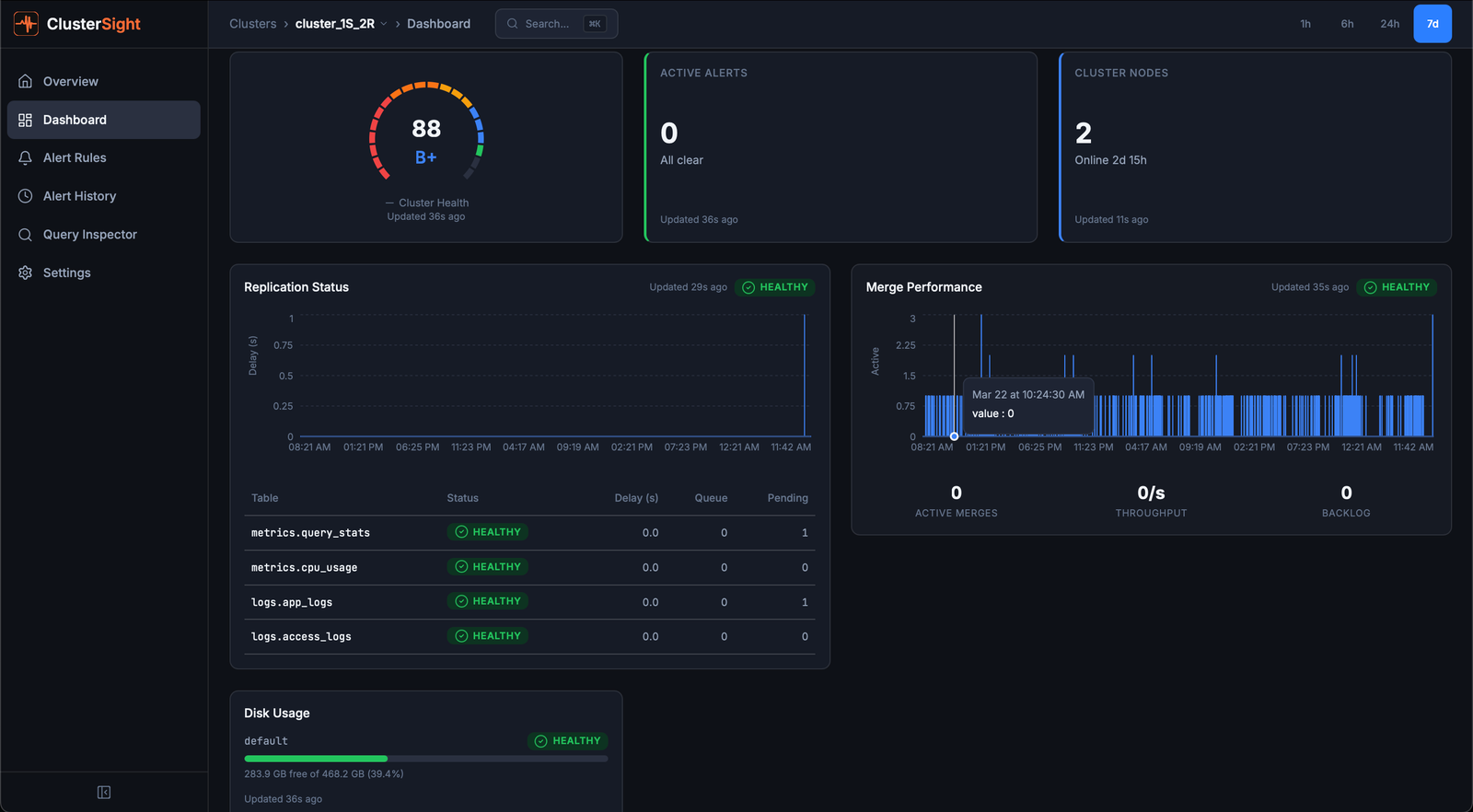
Navigate to http://localhost:3001 in your browser. You will be prompted to add your first ClickHouse cluster via the onboarding wizard.
Port note: The default external port is 3001 (mapped to internal 3000). To use a different port, edit
docker-compose.ymland change3001:3000to<your-port>:3000.
Configuration Reference
All configuration is via environment variables. Copy .env.example to .env and uncomment/edit as needed. All variables are optional — the application uses sensible defaults.
Docker precedence:
DATABASE_PATHandLOG_LEVELare set directly indocker-compose.yml'senvironmentblock, which takes precedence over.env. Override those two variables indocker-compose.yml, not in.env.
| Variable | Type | Default | Description |
|---|---|---|---|
CLUSTERSIGHT_PASSWORD | string | (unset) | Plaintext password for the password gate. App hashes it with SHA-256 internally. Leave unset for dev mode (no auth). |
FERNET_KEY | string | (auto-generated) | Fernet encryption key for cluster credentials and Slack webhook URLs. Auto-generated to ./data/.key on first run. Preserve this across upgrades — losing it makes stored credentials unreadable. |
CLICKHOUSE_HOST | string | (empty) | Optional default ClickHouse host. Cluster connections are primarily configured via the onboarding wizard; this serves as a fallback only. |
CLICKHOUSE_PORT | int | 8123 | Optional default ClickHouse HTTP port. |
CLICKHOUSE_USER | string | (empty) | Optional default ClickHouse username. |
CLICKHOUSE_PASSWORD | string | (empty) | Optional default ClickHouse password. |
SLACK_WEBHOOK_URL | string | (unset) | Slack incoming webhook URL for alert delivery. Also configurable via the Settings page in the UI. |
COLLECTION_INTERVAL | int (seconds) | 30 | Seconds between ClickHouse system table collection cycles. |
DATABASE_PATH | string | /app/data/clustersight.db | SQLite database file path inside the container. Set in docker-compose.yml; override there, not in .env. |
LOG_LEVEL | string | INFO | Logging level: DEBUG, INFO, WARNING, ERROR. Set in docker-compose.yml; override there, not in .env. |
CORS_ORIGINS | string | http://localhost:5173,http://localhost:3000 | Comma-separated list of allowed CORS origins. |
CACHE_TTL | int (seconds) | 30 | API response cache TTL. |
APP_URL | string | http://localhost:3000 | Base URL used in Slack notification links. For Docker deployments, set to your external host URL (e.g., http://localhost:3001 with default port mapping). |
Generating a FERNET_KEY explicitly
If you need to share a key across multiple instances or set it before the first run:
python -c "from cryptography.fernet import Fernet; print(Fernet.generate_key().decode())"Set the output as FERNET_KEY in your .env or docker-compose.yml environment block.
Enabling password protection
Add to docker-compose.yml:
environment:
  - CLUSTERSIGHT_PASSWORD=your_secure_password
Or uncomment in .env:
CLUSTERSIGHT_PASSWORD=your_secure_password
Restart the container for the change to take effect:
docker compose restart clustersightAdding a Cluster
Step 1: Create a read-only ClickHouse user
Run this SQL on your ClickHouse cluster (as an admin user):
CREATE USER IF NOT EXISTS clustersight_ro
    IDENTIFIED BY 'your_readonly_password'
    HOST ANY;

GRANT SELECT ON system.*             TO clustersight_ro;
GRANT SELECT ON information_schema.* TO clustersight_ro;
Step 2: Use the onboarding wizard
- Open ClusterSight at
http://localhost:3001 - Click Add Cluster (or navigate to
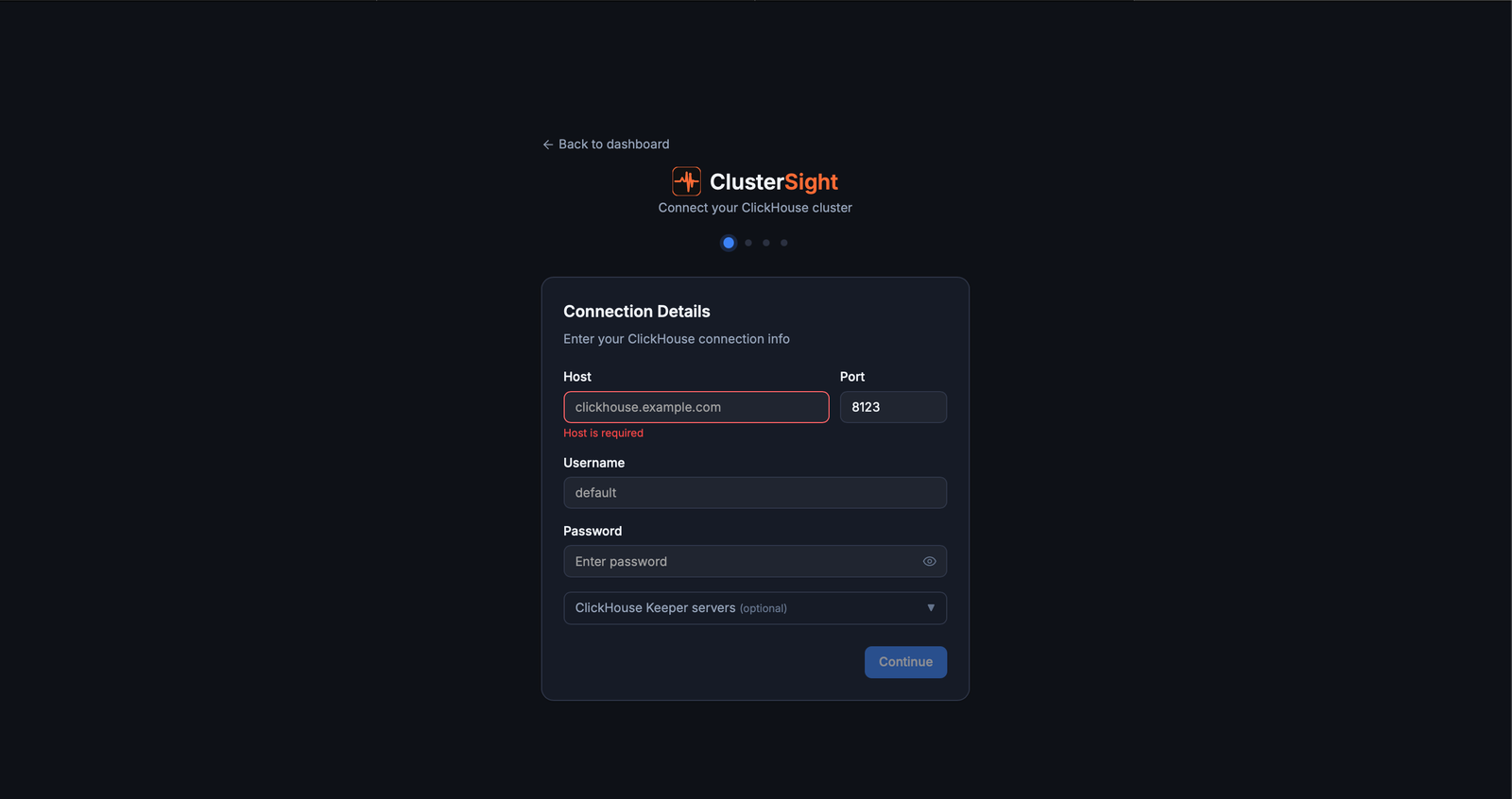
/clusters→ Add Cluster) - Fill in the connection form:
- Host — ClickHouse hostname or IP (e.g.,
clickhouse.internal) - Port — HTTP API port (default:
8123) - Username — e.g.,
clustersight_ro - Password — password for the read-only user
- Cluster name (optional) — display name in the UI
- Host — ClickHouse hostname or IP (e.g.,
- Click Test Connection — ClusterSight verifies connectivity and discovers your cluster topology (replicas, Keeper nodes)
- Click Continue → Save Cluster
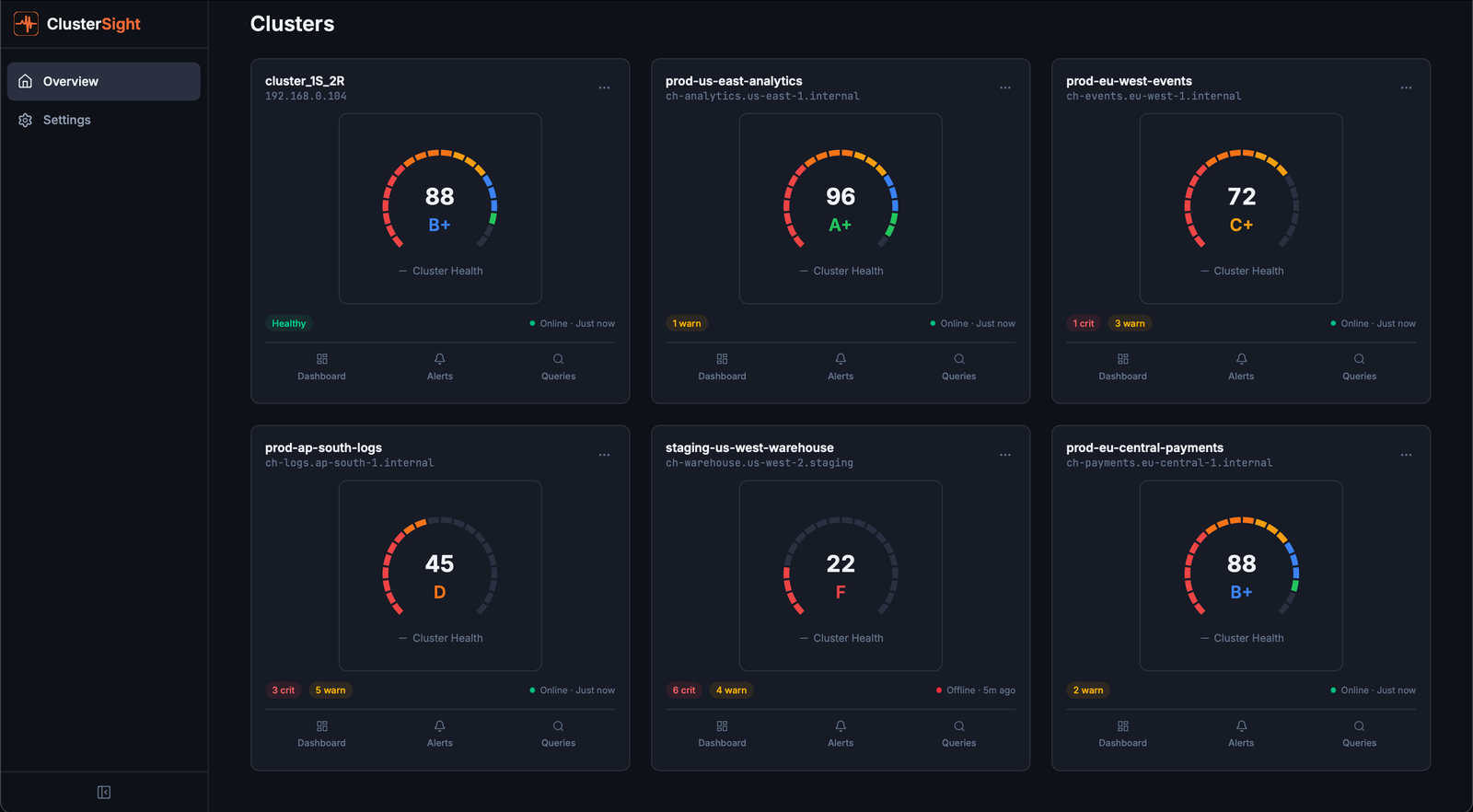
The cluster appears on the overview page within one collection cycle (default: 30 seconds).
Upgrade Instructions
ClusterSight uses Alembic for database migrations. Migrations run automatically on startup — no manual migration step needed.
Standard upgrade
docker compose pull
docker compose up -d
This pulls the latest image and restarts the container. Alembic applies any pending migrations on startup.
Preserve your FERNET_KEY
The Fernet encryption key is stored in ./data/.key (on the host, inside the bind-mounted data directory). As long as the ./data:/app/data volume mount is in place, the key is preserved across upgrades automatically.
Warning: If you set
FERNET_KEYexplicitly as an environment variable instead of using the auto-generated.keyfile, ensure the same key is present in your environment after the upgrade. Losing the key makes all stored cluster passwords and Slack webhook URLs unreadable.
Breaking change notes
- v0.1.x: No breaking changes. Alembic handles all schema migrations.
Backup & Restore
What is persisted
The ./data:/app/data bind mount contains:
clustersight.db— SQLite database (cluster configs, alert history, health scores, collection data).key— Fernet encryption key (required to decrypt stored credentials)
Backup
# Stop the container (recommended for a clean snapshot)
docker compose stop

# Copy the data directory
cp -r ./data ./data.bak-$(date +%Y%m%d)

# Or just the database file
cp ./data/clustersight.db ./data/clustersight.db.bak

# Restart
docker compose start
Restore
docker compose stop
cp ./data.bak-YYYYMMDD/clustersight.db ./data/clustersight.db
cp ./data.bak-YYYYMMDD/.key ./data/.key
docker compose start
Note: Always restore both
clustersight.dband.keytogether — the database contains credentials encrypted with the key. Restoring one without the other leaves stored credentials unreadable.
Monitoring the Monitor
Docker healthcheck
The container registers a healthcheck that polls /api/v1/health every 30 seconds. Check its status with:
docker ps
# Look for the STATUS column: "Up X minutes (healthy)" or "(unhealthy)"
Startup summary log
On every startup, ClusterSight emits a structured JSON log entry summarising its configuration:
docker compose logs clustersight | grep startup_summaryExample output:
{
  "event": "startup_summary",
  "version": "0.1.0",
  "auth_mode": "password_protected",
  "clusters_configured": 2,
  "collection_interval_sec": 30,
  "data_path": "/app/data/clustersight.db"
}| Field | Values | Meaning |
|---|---|---|
auth_mode | password_protected / dev_mode_no_auth | Whether CLUSTERSIGHT_PASSWORD is set |
clusters_configured | integer | Total clusters registered (active + inactive) |
collection_interval_sec | integer | Seconds between collection cycles |
Collector status
On the Cluster Overview page (/clusters), each cluster card shows its collector status: Online (collecting data) or Offline (unreachable). If a cluster shows Offline, verify ClickHouse connectivity and check the container logs:
docker compose logs clustersight | tail -50Troubleshooting
1. Can't connect to ClickHouse
Symptom: "Connection failed" during onboarding.
Fix: Verify the ClickHouse HTTP API is reachable from the ClusterSight container:
curl http://your-clickhouse-host:8123/ping
# Expected: "Ok."
Check firewall rules, ensure port 8123 is open, and verify the host is accessible from the Docker network.
2. system.* permission denied
Symptom: Dashboard panels show errors or empty data.
Fix: The read-only user is missing GRANT permissions. Run on your ClickHouse cluster:
GRANT SELECT ON system.*             TO clustersight_ro;
GRANT SELECT ON information_schema.* TO clustersight_ro;
3. Fernet key lost after restart
Symptom: DecryptionError in logs, cluster connections fail after a restart.
Fix: The .key file was not persisted. Ensure the data volume mount is in place in docker-compose.yml:
volumes:
  - ./data:/app/data   # Persists database + encryption key
If the key is already lost, delete the affected clusters and re-add them with fresh credentials.
4. Port 3000 conflict
Symptom: Container fails to start — "port is already allocated".
Fix: Remap the external port in docker-compose.yml:
ports:
  - "8080:3000"   # Replace 3001 (the default) with any available host port
Then update APP_URL in your .env to match the new port.
5. Auth prompt won't accept password
Symptom: Password prompt keeps re-appearing after entering the correct password.
Fix: CLUSTERSIGHT_PASSWORD must be the plaintext password — ClusterSight hashes it with SHA-256 internally. Verify:
docker compose exec clustersight printenv CLUSTERSIGHT_PASSWORDEnsure there are no trailing spaces or quotes around the value in your .env or docker-compose.yml.